Help Center
-
Knowledge Base
-
-
-
- Articles coming soon
-
- Home
- Install Settings
- Merchandising
- Personalize
- Category
- NLP
- Script-Hooks
- Analytics
- Manage Users
- Agentic Search (AI-Powered Conversational Search)
- AI Synonyms
- Semantic Search
- AI Shop Assistant (Chat Widget)
- Recommendations Widget
- Advanced Filtering & Filter Trees
- Troubleshooting Guide
- Search Performance Optimization
- BigCommerce Search Integration
- WooCommerce Search Integration
- Getting Started with eCommerce Search
- Ecom Copilot (AI Sales Assistant)
- AI Filtering (Query Tagging and Intent Classification)
- Visual Merchandising (Product Pinning)
- Geo Merchandising
- A/B Testing
- Showcase Products (Zero-Character Search)
- Delete Products from Search Index
- Landing Pages
- Autocomplete Configuration
- Popular Suggestion Queries
- Tab Views
- Theme Setup
- Search Bar Integration
- Search Redirects
- Advanced Configuration (Search Weights)
- Matching Options
- Connect BigCommerce
- GDPR and Privacy Settings (Cookie Consent)
- Image Search (Visual Search)
- Smart Notifications (Back-in-Stock and Price Drop Alerts)
- Leverage GA4 Data (Google Analytics 4 Integration)
- Manage Users (Dashboard Access and Permissions)
- Reporting Overview
- Show all articles (28) Collapse Articles
-
-
- Install Settings
- Analytics
- Search settings
- Merchandising
- Category
- NLP
- Search-API info
- Manage Users
- Script-Hooks
- Personalize
- Agentic Search (AI-Powered Conversational Search)
- AI Synonyms
- Semantic Search
- Recommendations Widget
- Advanced Filtering & Filter Trees
- Troubleshooting Guide
- Search Performance Optimization
- WooCommerce Search Integration
- Show all articles (3) Collapse Articles
-
-
- Instructions to install app
- Home
- Install Settings [Shopify]
- Category
- Merchandising
- Search settings
- NLP
- Analytics
- Search-API info
- Manage Users
- Script-Hooks
- Personalize
- Agentic Search (AI-Powered Conversational Search)
- AI Synonyms
- Semantic Search
- AI Shop Assistant (Chat Widget)
- Recommendations Widget
- Commerce MCP Server (Shopify AI Tools)
- Advanced Filtering & Filter Trees
- Troubleshooting Guide
- Search Performance Optimization
- Ecom Copilot (AI Sales Assistant)
- Search Bar Integration
- Search Redirects
- Metafields and Tags (Shopify)
- Product Bundles (Shopify)
- Collection Pages (Shopify)
- GDPR and Privacy Settings (Cookie Consent)
- Image Search (Visual Search)
- Smart Notifications (Back-in-Stock and Price Drop Alerts)
- Leverage GA4 Data (Google Analytics 4 Integration)
- Manage Users (Dashboard Access and Permissions)
- Reporting Overview
- Show all articles (18) Collapse Articles
-
- Getting started
- Installation Guide
- Magento 2 Search Integration - Adobe Commerce edition
- Commerce MCP Server (Shopify AI Tools)
- BigCommerce Search Integration
- WooCommerce Search Integration
- Getting Started with eCommerce Search
- Connect BigCommerce
- Domain Allowlist (WordPress)
- Leverage GA4 Data (Google Analytics 4 Integration)
-
- Articles coming soon
-
Magento 2 Search Integration – Adobe Commerce edition
ExpertRec search can be integrated into your Magento 2 store (adobe commerce edition) through the following process.
-
- Sign up for an e-commerce search account.
More information is available at How to create an e-commerce search account.
-
- Export product feed from Magento 2
Magento 2 Commerce allows a built-in mechanism to export product feed.
Magento Guide to export Feed
Select Entity Type to Products to export product data.
This will export all the products with the relevant/selected attributes into a CSV file.
Choose all the required fields that you want to be searched/displayed in search results.
Common fields are.
1. SKU, Title, Description, Short Description, category, sub-category, brand, variants – for searching.
2. Image URL, labels and tags – for displaying in results.
3. Price, MSRP (sticker price), offers – for display and filters.
4. Category, sub-category, variants – for filters.
Please add any other fields you would like to search and or display.
Follow this document to schedule export periodically: https://docs.magento.com/user-guide/system/data-schedule-export.html
-
- Upload product feed
The next step is to sign in to the Expertrec control panel – feed url with your credentials.

update the feed URL to the FTP or HTTP URL where the feed is scheduled to be exported.
Choose the feed type to “CSV”.
Leave the delimiter as “,”
Enter the document ID as id or SKU (the primary key in your exported data).
And press Update.
-
- Add Expertrec Search bar
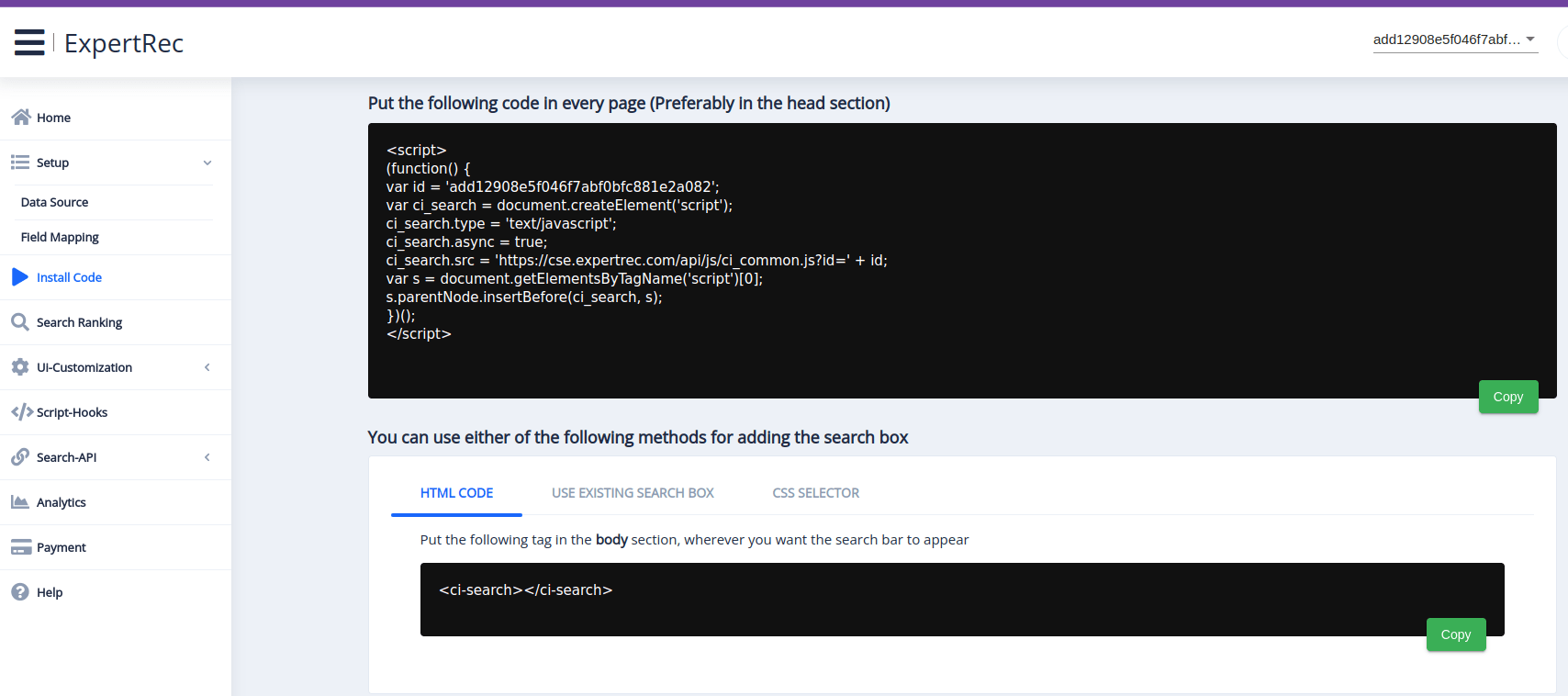
Go to the install code section and add the script displayed to every page (preferably in the HEAD session)
Follow this blog on How to add a custom code in HTML head in Magento 2.
If you face any issues during the setup or feel that the article is missing something, then feel free to contact our support team for assistance.