


Steps to create an e-commerce Shopify autocomplete search box
Method 1- Using Expertrec’s Shopify search App.
- Install Expertrec’s Shopify search extension from here.
- Once you install the extension, you will be directed to your control panel where you will have to enable your search engine by toggling on the enabled search extension.

Method 2- Using Expertrec’s Shopify search bar plugin
- Log in to your Shopify store.
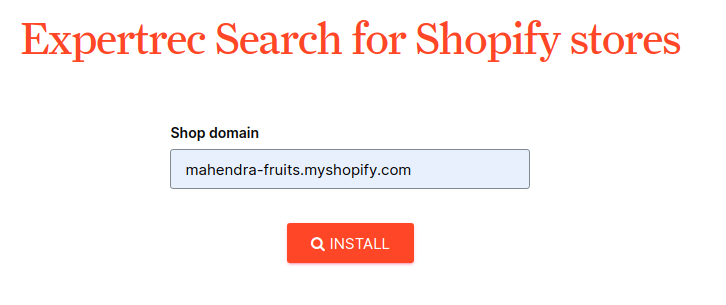
- Go to https://www.expertrec.com/shopify/

- Enter your Shopify store URL.
- Click on install.
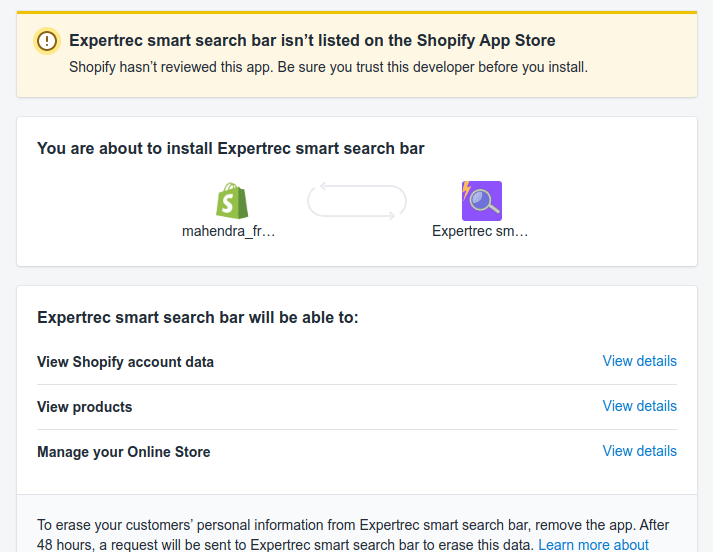
- Click on install the unlisted app.

- Now check your Shopify store search.
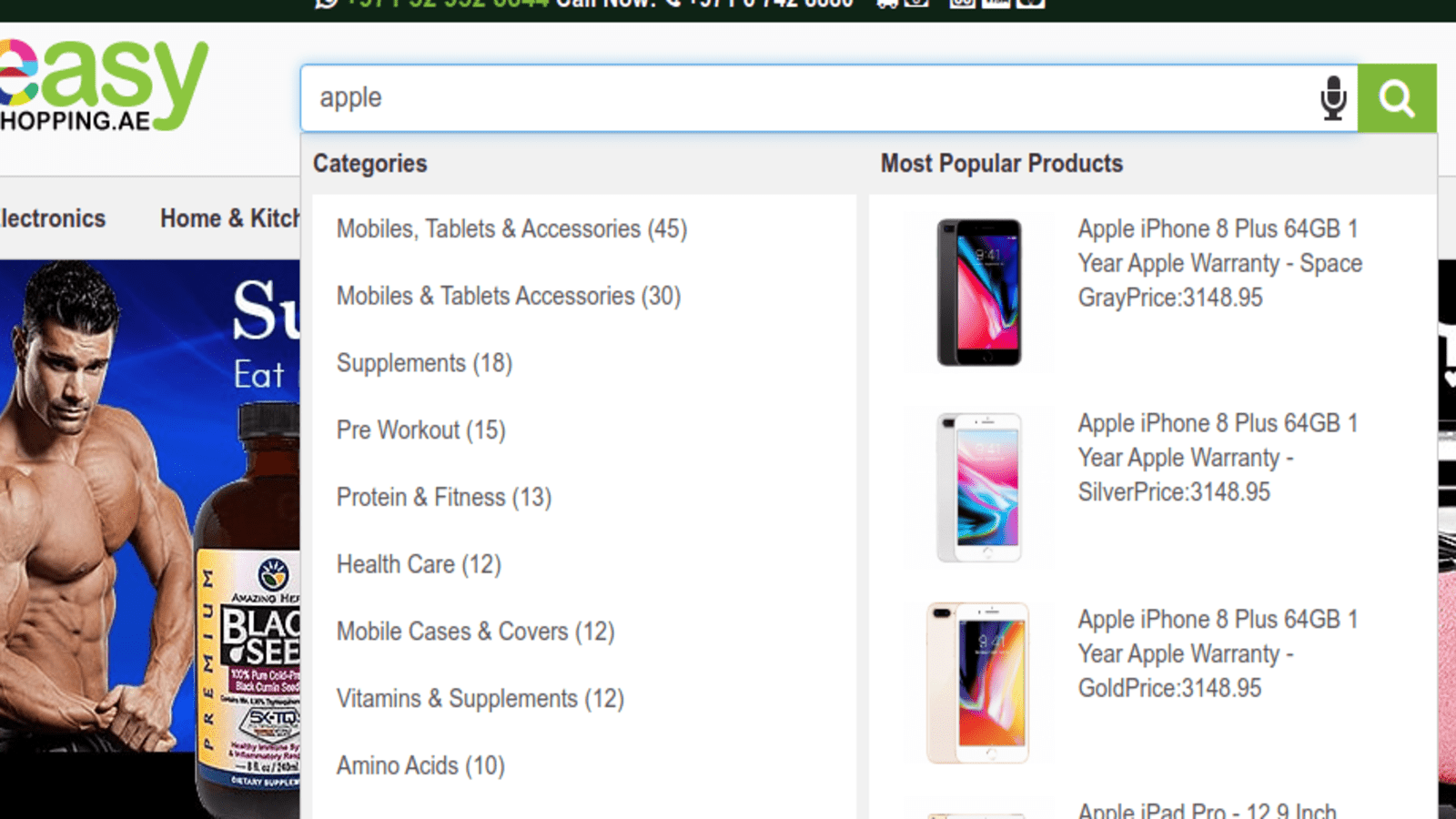
- The Shopify autocomplete bar will look similar to the below image.

- The Shopify search results page will look like this.

- This method also adds voice search to your Shopify store.


Method 3- By Tweaking the code
The online store search function in Shopify is a powerful tool and a fully-featured tool that buyers can use to make necessary searches across specific products, pages, and articles of a shop. More importantly, if your clients or customers desire to optimize their search or if you are a business owner with a Shopify store and you would like to improve on the search option so that your buyers can see desired and specific kinds of results, then this article is all you need. Basically, and explicitly, it highlights the processes or ways of creating a Shopify search autocomplete.

THE LIQUID
Shopify has another cool feature where you can view the URL and subsequently take it to a special liquid template that corresponds to that view. This is known as “the liquid”. Here, you might be required to create a template that has a file named search.json.liquid.
Steps:
- To create a new template for the search page- search.json.liquid Here, in the templates directory, click on the “Add a new template” link and choose the type of option you desire for your new template. In case of an alternate search template, click on search and name it JSON.
- Click on “Create template”, which will come upon the code editor, while the file is populated with the default code.

- Create a search-autocomplete.liquid file. This is found in the Snippets directory. In the popup, you will see something like, “Give your snippet the name search -autocomplete”. Click on Create Snippet.

- Now, edit theme.liquid file. Locate the theme.liquid file in the Layouts folder. Click on it to open it in the online code editor. Scroll down and you’ll see the closing tag.


- Make your search box easy to identify – For anyone who has previously worked on any kind of custom Shopify App development project, they are familiar with the importance of the product search. One of the best ways to go about it is to make the search box easy to spot for whoever intends to use it, and this is to enhance the UX. Since it is common and reasonable to look for the search box at first, it is therefore important that you, as an online storefront owner place much emphasis on your search box whenever you are implementing the Shopify Search Settings.
- Adopt the use of meta fields editor. This is one of the most common and effective methods of improving Shopify Visual Search for your store. It is free and allows you to add meta fields that are related to a particular product, to improve search.
- The fast search must be implemented. Time, they say, is money. This applies as well to the product search case where the details of the products have to be retrieved in split seconds. Imagine your search box taking a lot of time to fetch the details, it can be really frustrating and consequently result in a terrible user experience. Therefore, ensure that your searching facility comes with high speed, and in this case, an excellent cloud-based hosting solution won’t be a bad idea.
- And Autocomplete? Users have lately become big fans of the concept of Autosuggestion and Autocomplete since its introduction by Google. As the name implies, immediately after you start typing something in the Google search box, you get related search queries thanks to this feature. That means you do not have to type all of the entire questions fully to get the desired result.
What is Shopify search autocomplete?
Shopify search autocomplete is a feature that shows instant product suggestions as customers type in the search bar. It displays matching products with images, prices, and descriptions, helping shoppers find what they need faster.
How do I add autocomplete to Shopify search?
The easiest way is to install a search app like ExpertRec from the Shopify App Store. It adds instant autocomplete with product images, prices, and smart suggestions without any coding required.
Does Shopify have built-in search autocomplete?
Shopify’s default search has limited predictive search functionality. For full autocomplete with product images, prices, and typo tolerance, most merchants install a dedicated search app like ExpertRec.


