How to Get a Google Custom Search API Key (Step-by-Step)
If you are an existing Google Custom Search JSON API user, follow these steps to create or retrieve your API key:Step 1: Go to Google Cloud Console
Navigate to console.cloud.google.com and sign in with your Google account. This is where all Google API credentials are managed.Step 2: Create or Select a Project
Click the project dropdown at the top of the page. You can either select an existing project or click New Project to create one. Give your project a descriptive name (e.g., “My Site Search”) and click Create.Step 3: Enable the Custom Search JSON API
- From the left sidebar, go to APIs & Services → Library.
- Search for “Custom Search JSON API” in the search bar.
- Click on the API result and then click the Enable button.
Step 4: Create Your API Key Credentials
- Go to APIs & Services → Credentials.
- Click + CREATE CREDENTIALS at the top of the page.
- Select API key from the dropdown.
- Your new Google search API key will be generated and displayed in a dialog box. Copy it immediately.
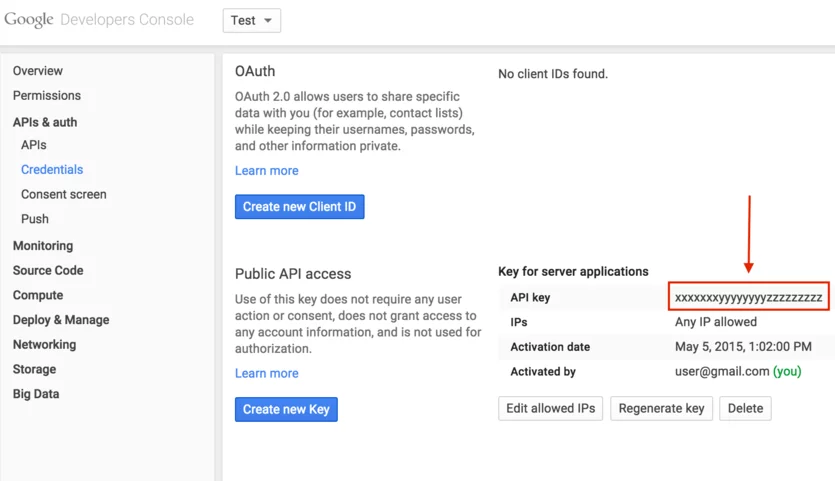
Step 5: Restrict Your API Key (Critical for Security)
Never leave your API key unrestricted. Click Restrict Key in the dialog (or edit the key later) and apply these restrictions:- API restrictions: Select “Restrict key” and choose only Custom Search JSON API from the list.
- Application restrictions: Restrict by HTTP referrers (websites) or IP addresses depending on your use case.
Where to Find Your Google Custom Search Engine API Key
If you’ve already created a key and need to find it again:- Open Google Cloud Console → Credentials.
- Select the correct project from the dropdown at the top.
- Your API keys are listed under the API Keys section. Click the key name to view or copy it.
cx parameter). Find it in the Programmable Search Engine Control Panel under Setup → Basics → Details.
After you have both, your API calls will look like this:
https://www.googleapis.com/customsearch/v1?key=YOUR_API_KEY&cx=YOUR_CX&q=search+termCommon Errors and How to Fix Them
| Error | Cause | Fix |
|---|---|---|
403 Forbidden |
Invalid API key, API not enabled, or key restrictions blocking the request | Verify the key in Cloud Console, ensure Custom Search JSON API is enabled, and check key restrictions |
429 Too Many Requests |
Exceeded daily quota (free tier: 100 queries/day) | Wait for quota reset, enable billing for higher limits, or upgrade your plan |
400 Bad Request |
Missing or malformed cx or key parameter |
Double-check both parameters in your API request URL |
How to Regenerate Your API Key
If your key is compromised or not working, regenerate it:- Go to APIs & Services → Credentials in Google Cloud Console.
- Click the three-dot menu next to your API key.
- Select Regenerate key. The old key will stop working immediately.
- Update your application with the new key.
API Key Best Practices
Follow these practices to keep your Google Custom Search API key secure:- Restrict the key to Custom Search API only – don’t leave it open to all Google APIs.
- Never expose the key in client-side code – JavaScript files, HTML source, or public repositories can be scraped by bots.
- Use environment variables – store keys in
.envfiles or your server’s environment configuration rather than hardcoding them. - Rotate keys periodically – regenerate keys every few months as a security measure.
- Monitor usage – check the Cloud Console dashboard regularly for unexpected spikes in API calls.
Alternatives to Google Custom Search JSON API
Since the Google Custom Search JSON API is closed to new customers as of 2025, you’ll need an alternative if you’re setting up site search for the first time. Even existing users should plan their migration before the January 2027 deadline. ExpertRec is a drop-in replacement that provides site search without the complexity of managing API keys, quotas, or custom code. Key advantages include:- No API key management – get started with a simple code snippet instead of configuring credentials, projects, and billing.
- 5-minute setup – add search to your website by pasting one line of code.
- Content search plans from $49/mo – predictable pricing without per-query charges.
- Built-in analytics – see what visitors are searching for on your site.
Try ExpertRec Search – No API Key Required
For a deeper dive into the Custom Search JSON API and its capabilities, read our comprehensive guide: Google Custom Search JSON API Simplified.A Google Custom Search API key is a unique credential issued through Google Cloud Console that authenticates your application when making requests to the Custom Search JSON API. It is required for every API call and helps Google track usage and enforce quotas.
The free tier allows 100 search queries per day. Beyond that, you need to enable billing on your Google Cloud project. However, the API is now closed to new customers as of 2025, so new users cannot sign up.
A 403 error usually means your API key is invalid, the Custom Search JSON API is not enabled in your project, or your key restrictions are blocking the request. Go to Google Cloud Console, verify the key exists, check that the API is enabled, and review any IP or referrer restrictions on the key.
No. Google closed the Custom Search JSON API to new customers in 2025. Only existing users can continue using the API until January 1, 2027. New users should consider alternatives like ExpertRec for site search.
The API key (key parameter) authenticates your application with Google. The CX parameter is your Custom Search Engine ID that identifies which search engine configuration to use. You need both to make API calls.